Store rules
Decide how long customers can change an order, which paid orders open the window and what each change needs, then approve requests and adjust the texts and emails.
On this page
These rules cover the Free Edition, Atelier - Cancel Order & Change Address for WooCommerce, from version 1.0.0. Each setting named here, with its default and its values, is in the Settings reference.
The editing window
The window opens when the order is paid, or at checkout for cash on delivery, if the status the payment leads to is one of the Applicable payment statuses. An order that waits for a bank transfer or a cheque does not enter it, and neither does an order whose status you change yourself, for instance when you mark a transfer as received. These orders follow WooCommerce’s usual flow. Duration (minutes) sets how long the window stays open.
While the window is open, the order has the status Editable by customer instead of Processing, so your shipping integrations and your team do not start preparing it. Meanwhile:
- Stock is reduced when the order enters the window, and returns if the order is cancelled.
- Product sales and coupon usage are recorded as they are for an order in Processing.
- You can edit the order’s items only with Admin order editing on.
- Customers can download what they bought only with Downloads on.
The window closes in three ways, and the order then moves to Processing:
- Its duration runs out.
- You select Close editing window on the order screen and give a reason.
- You buy a WooCommerce Shipping label for it. The label screen warns you first.
Only when the window closes does WooCommerce send its Processing email to the customer and its New order email to you. An order cancelled during its window sends you no New order email.
What customers can change
There are three changes, each with its own mode. Customers see a change only while the window is open and its mode is not Disabled.
- Cancellation cancels the whole order. If the payment gateway supports WooCommerce refunds, the plugin asks it to refund the full amount. If it does not, or the refund fails, the order is still cancelled and you get the Manual refund pending email.
- Address changes cover the shipping address and phone, and the billing name and phone. An address in the same shipping zone and with the same tax rates applies at once. One that would change the zone or the tax rates is not applied: the customer can send it to you as a request, which reaches you as an order note and the Cross-zone address request email, and you decide by hand. The order total never changes.
- Notes and personalization cover the order note and the personalization values of the items whose meta keys you list in Editable item meta keys.
Every change a customer makes leaves an order note that shows what changed.
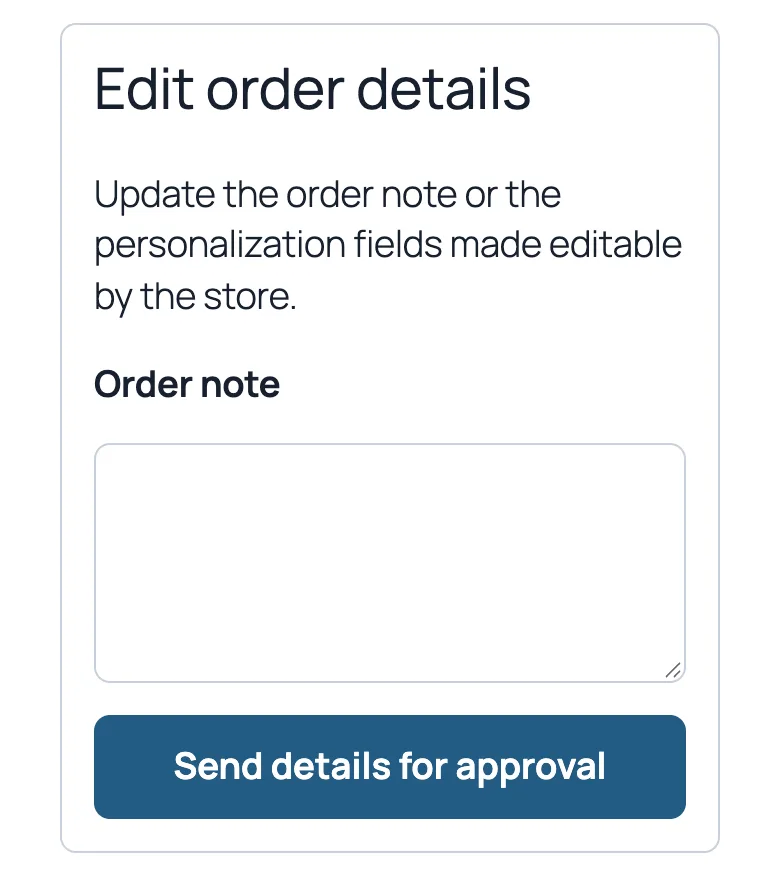
Approve or reject a request
With a change set to Requires approval, the customer’s change becomes a request, and the order stays as it is until you decide. An order holds one request per change at a time, and approving a cancellation discards the others.
Before you start:
- A customer has sent a request for a change set to Requires approval, while the order’s window is open.
- In WooCommerce > Orders, open the order.
- In the Order actions box, under Customer requests, select Approve or Reject on the request.
- Confirm with Approve request, Approve cancellation or Reject request.
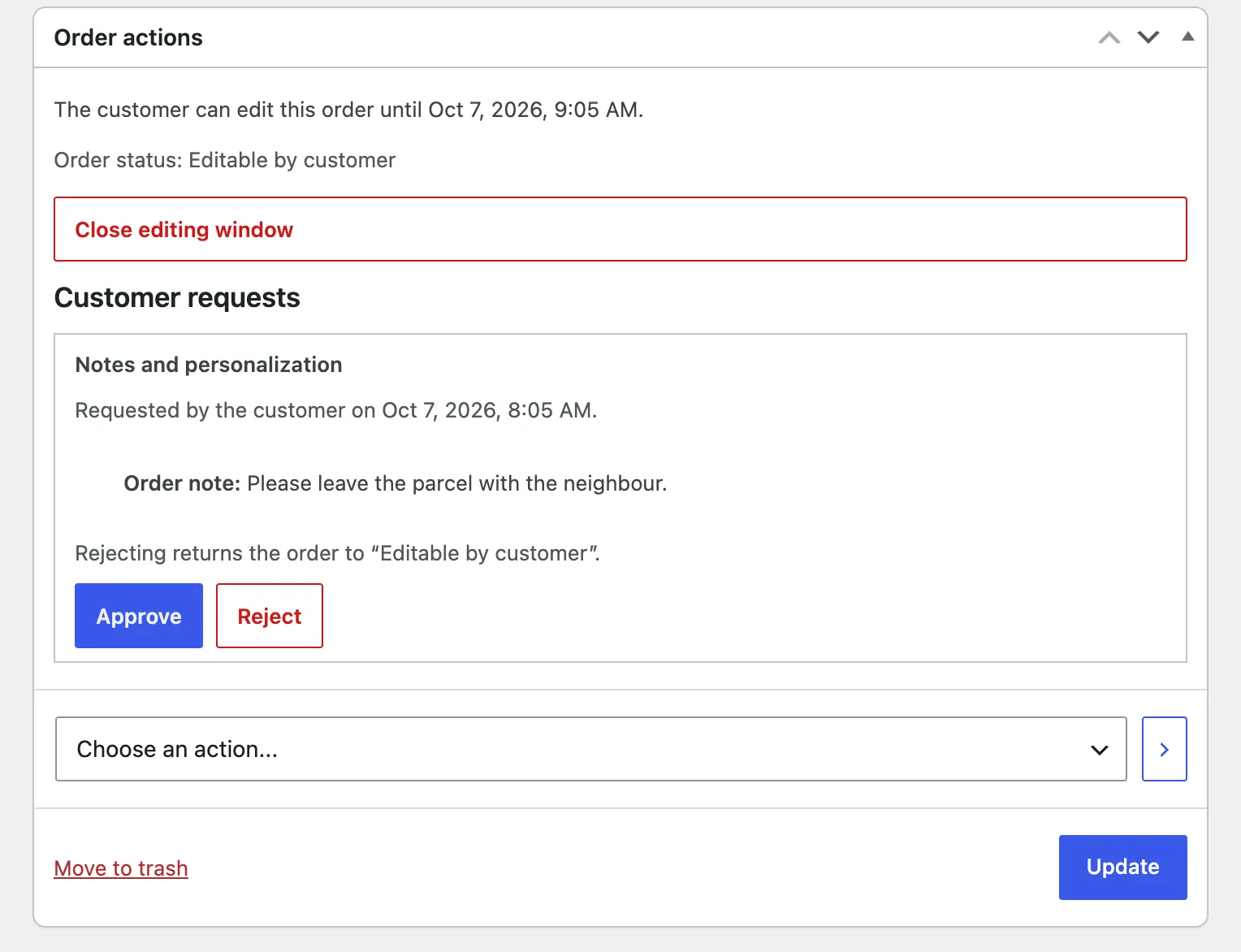
The screen confirms with “Request approved.” or “Request rejected. The order returned to its original status.” Approving applies the change; rejecting discards it and returns the order to the status it had when the request was sent. The customer gets the Customer request updates email.
Change the texts customers read
Each change has a short text that customers read next to it.
Before you start:
- The plugin is active.
- Go to WooCommerce > Settings > Customer order editing.
- Under Customer text, edit Cancellation text, Address-change text or Notes and personalization text.
- Select Save changes.
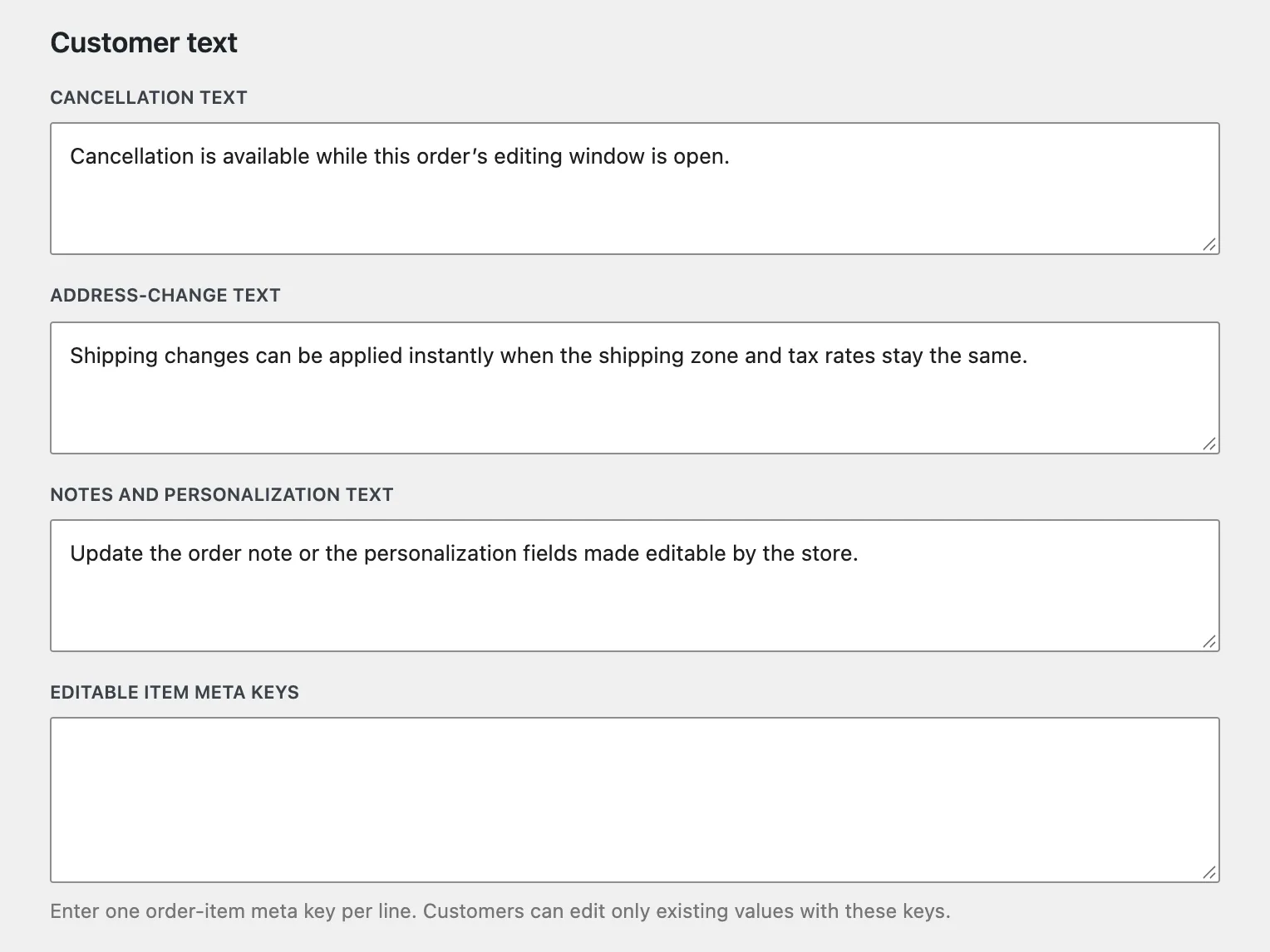
The screen confirms with “Your settings have been saved.”, and an order page in My Account shows your text on the card of its change.
Emails
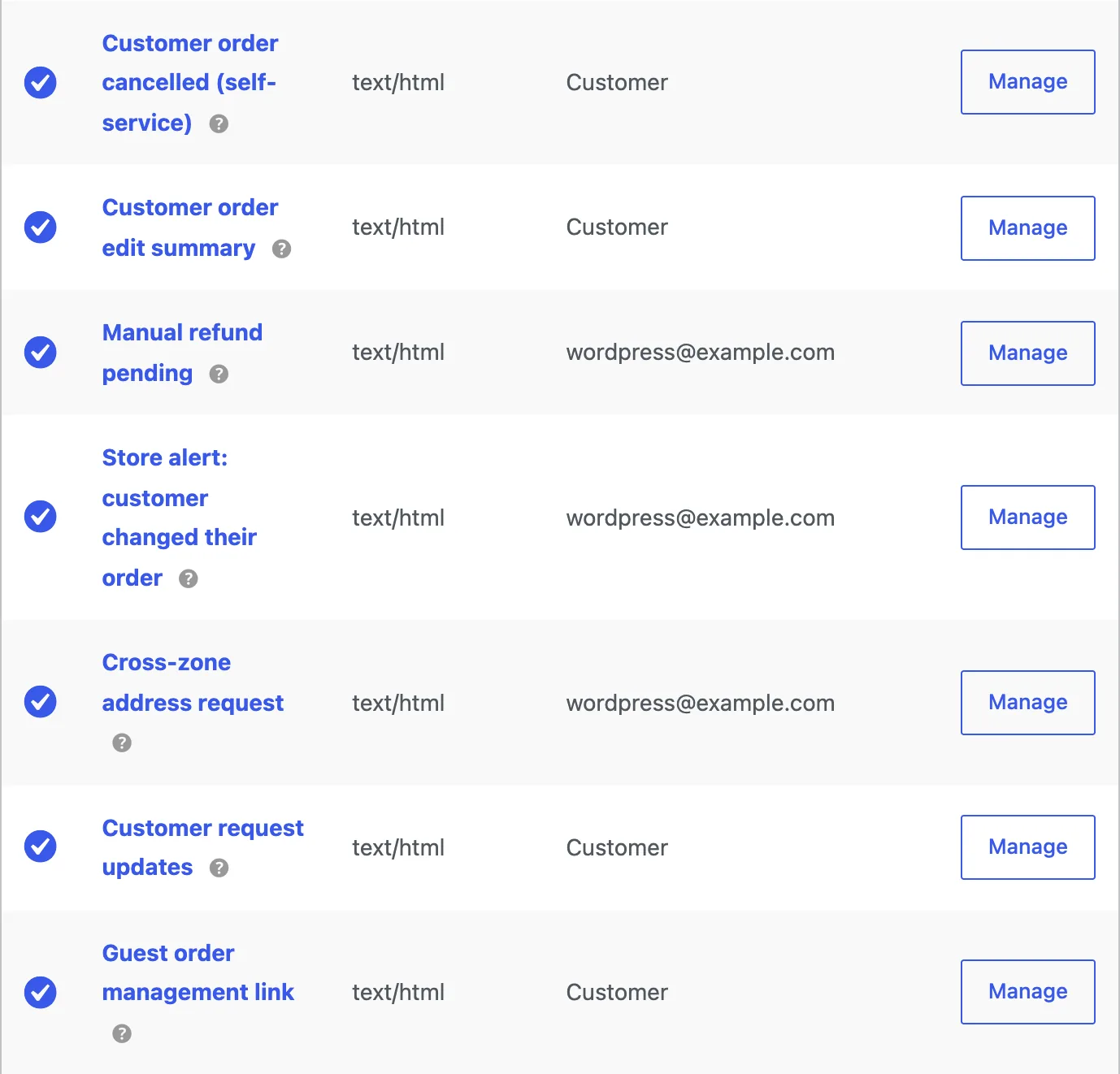
The plugin adds seven emails to WooCommerce. For your customers:
- Guest order management link: sent once to a guest when the order enters its window, with the Manage order link and until when the order can be changed. It goes out only for a guest order, with Guest access on and at least one change available.
- Customer order cancelled (self-service): sent when an order is cancelled, including orders cancelled while still pending payment. If WooCommerce’s own Cancelled order email is on, that one covers cancellations from Processing or On hold instead, so the customer gets one email.
- Customer order edit summary: one summary of the address and personalization changes, sent after a wait from the latest one.
- Customer request updates: sent when a request is received, approved or rejected.
For you, sent to the recipients each email has in its settings:
- Store alert: customer changed their order: sent after each customer action, or grouped into one digest per order.
- Cross-zone address request: sent when a customer proposes an address in another shipping zone or with other tax rates.
- Manual refund pending: sent when an automatic refund is unavailable or fails and you need to refund by hand.
Turn an email off or change it
Before you start:
- The plugin is active.
- Go to WooCommerce > Settings > Emails.
- Select Manage next to the email.
- Change its settings. The Settings reference lists them.
- Select Save changes.
The screen confirms with “Your settings have been saved.”, and the list of WooCommerce > Settings > Emails shows whether the email is on.