Review links and QR codes
Collect reviews from customers without an order, such as shop or fair buyers, with a public link and a QR code for each product.
On this page
A public review link lets someone review one product without an order behind it. You share the link, or print its QR code on a card or a package insert.
Use a public review link for customers who bought at your physical shop or at a fair. The reviews that come in through it always arrive pending and without the Verified buyer badge.
Public review links are in both Editions, from version 1.0.0. What changes in Pro is that these reviews can carry photos.
Turn it on
Before you start:
- At least one published product that allows reviews.
- Go to Visual Reviews > Request reviews.
- Open the Preferences tab.
- In Link and QR code, tick Turn on organic capture through a public link.
- Select Save link and QR code.
- Search for the product in the same card.
- Select Copy link or Download QR code.
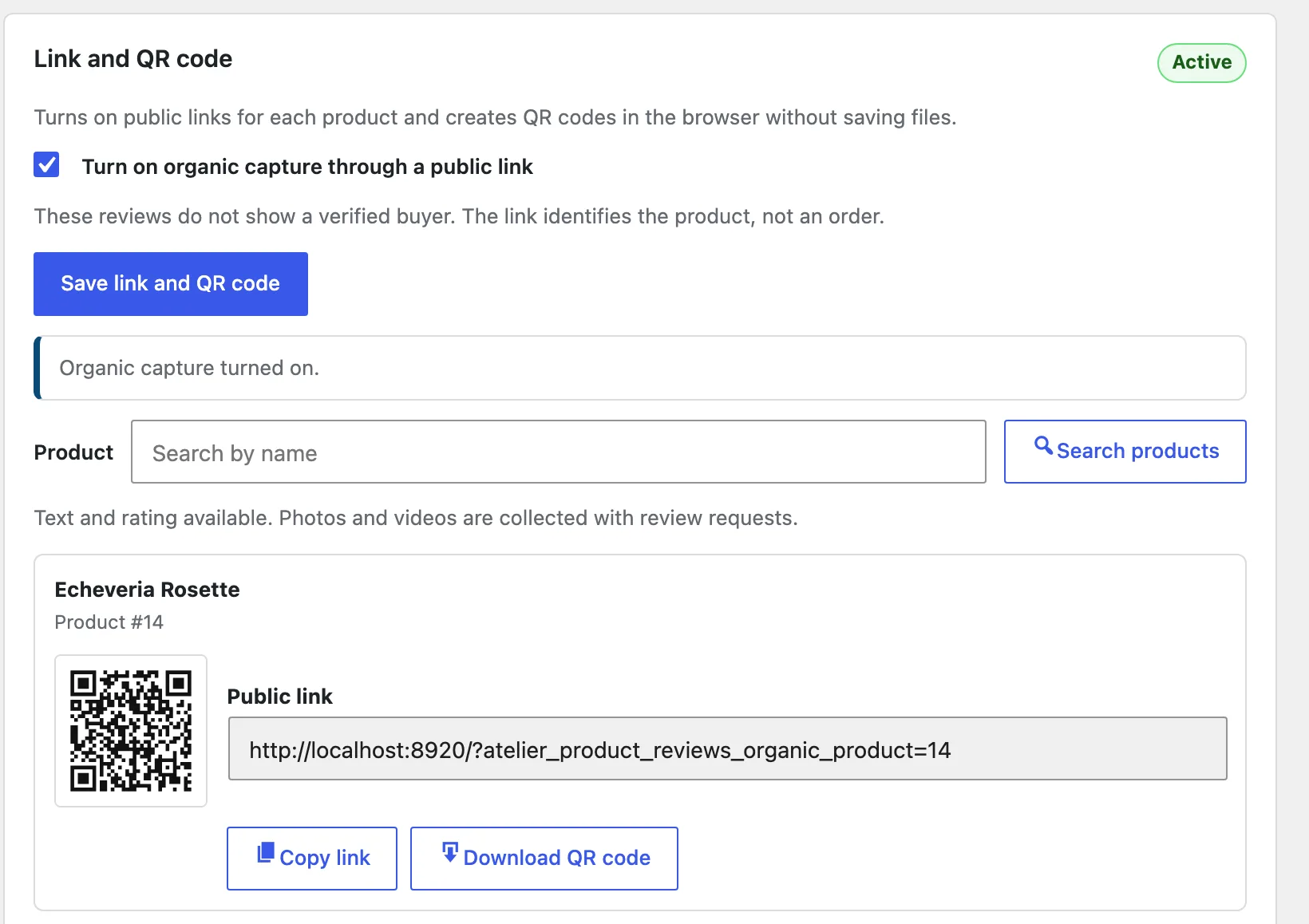
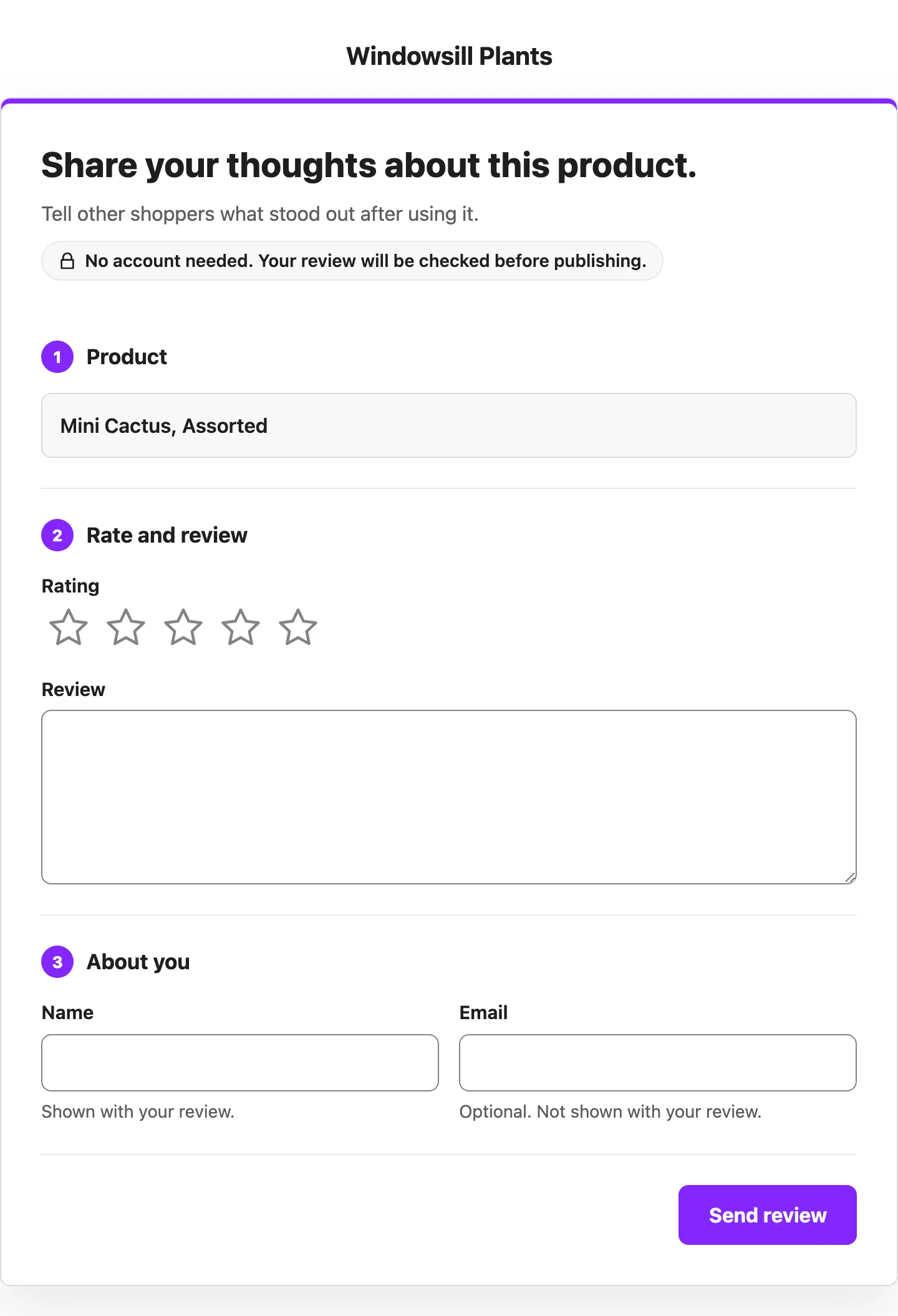
The screen confirms with “Organic capture turned on.” and the card says Active. Open the link you copied: it shows your store’s review form for that product, with “Share your thoughts about this product.” as its title unless you changed the form texts.
While it is on, every published product that allows reviews has its link.
The QR code is the same link as an image. It is created in your browser and is not saved in your Media Library.
The link names the product, not an order, and it does not expire. It keeps working if the product’s address changes.
Products without a link
A product has no link when it is not published or does not allow reviews, and the list says which: “The product is not published.” or “The product does not allow reviews.”
To take the link away from one product, turn off reviews for that product in WooCommerce.
What the customer sends
- A star rating and a text, with their name, which is shown with the review.
- Their email, if they want: it is optional and is not shown with the review. An email does not prove a purchase.
- In Pro, photos, with the customer’s consent to publish them: Photos and video gives what each Edition accepts.
What happens to these reviews
- They always wait for your approval, whatever your publishing policy says.
- They never show the Verified buyer badge: the link identifies the product, not an order.
- With new review notifications turned on, you get one, and it says “This review is pending and is not a verified purchase.”
- In Pro, they earn no coupon: rewards are for reviews that come from a review request.
Moderation explains how to approve them.
Turn it off
Turned off, the links and QR codes you already shared stop working, and no new review comes in through them. The reviews you already received stay as they are.
Before you start:
- Public review links are on.
- Go to Visual Reviews > Request reviews.
- Open the Preferences tab.
- In Link and QR code, untick Turn on organic capture through a public link.
- Select Save link and QR code.
The screen confirms with “Organic capture turned off.”
In Pro: the Write a review button
In Pro, the trust header of the product reviews widget shows a Write a review button when public review links are on and the product has one. The button opens that product’s link. Display covers the trust header.