Get started
Install your Edition, connect Pro to your account and review the first settings before the first real orders arrive.
On this page
These steps cover both Editions of Visual Reviews, from version 1.0.0: Free is Atelier Visual Reviews – Photo & Video Product Reviews for WooCommerce and Pro is Atelier Visual Reviews – Photo & Video Product Reviews for WooCommerce Pro. Each is a complete plugin, and Licence and Account says what each one needs from your Plugins Atelier account.
Before you install
- You need WordPress 7.1 or newer, WooCommerce 10.6.2 or newer and PHP 8.2 or newer.
- Visual Reviews works with High-Performance Order Storage (HPOS).
- English and Spanish are included.
Install Free
Before you start:
- Your store meets the requirements above.
- WooCommerce is installed and active.
- In your WordPress admin, go to Plugins > Add New Plugin.
- Search for Atelier Visual Reviews – Photo & Video Product Reviews for WooCommerce.
- Select Install Now on its card.
- Select Activate.
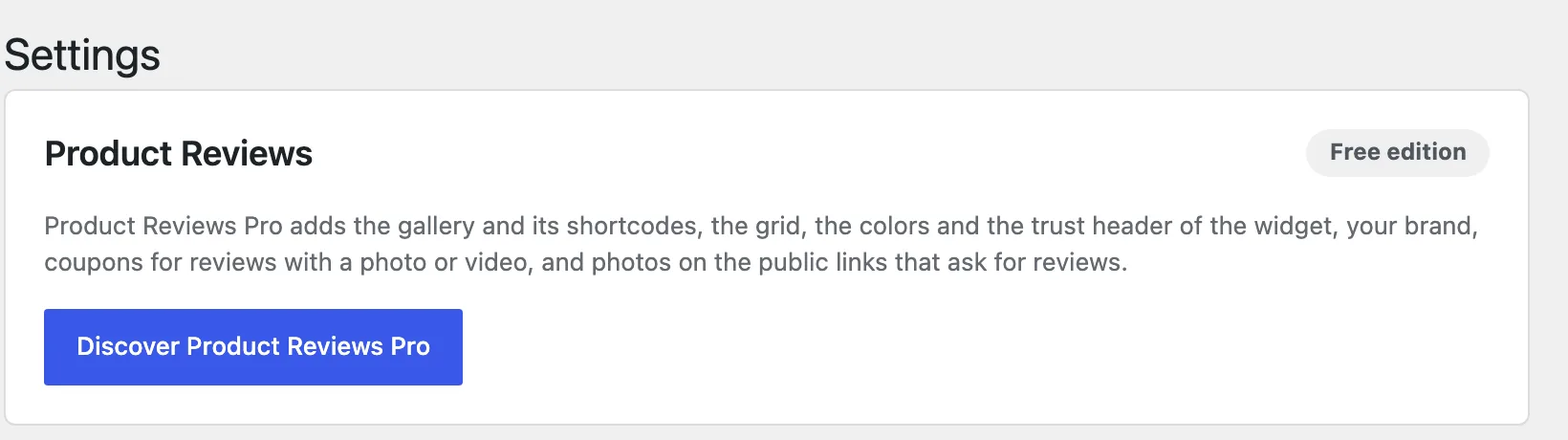
Visual Reviews then appears in your admin menu, and the first card of Visual Reviews > Settings says Free edition.
Install Pro
Pro installs from a ZIP file and does not need Free.
Before you start:
- Your store meets the requirements above.
- WooCommerce is installed and active.
- A Visual Reviews Pro purchase in your Plugins Atelier account.
- Free is not active on the site. If you already use it, follow Switch between Free and Pro instead.
- Sign in to your Plugins Atelier account.
- Open the services of your Visual Reviews Pro purchase.
- Select Install the Pro plugin to download
atelier-product-reviews-for-woocommerce-pro.zip. - In your WordPress admin, go to Plugins > Add New Plugin > Upload Plugin.
- Choose the ZIP file.
- Select Install Now.
- Select Activate Plugin.
Visual Reviews > Settings then says Pro edition in its Edition card, with the Platform services card above it.

Connect Pro to your account
Connecting is optional and only exists in Pro: it brings updates and support, and every Pro feature works without it.
Before you start:
- Pro is active.
- You can read your Plugins Atelier account’s email, where the confirmation code arrives.
- In your Plugins Atelier account, open the services of your Visual Reviews Pro purchase.
- Go to Connect an installation.
- Choose the installation type: Production for your commercial store, or Non-production for a development, staging or testing copy.
- Enter the code sent to your account email to get the connection key.
- In WordPress, go to Visual Reviews > Settings.
- In the Platform services card, paste the key in Connection key.
- Choose the same installation type.
- Select Connect.
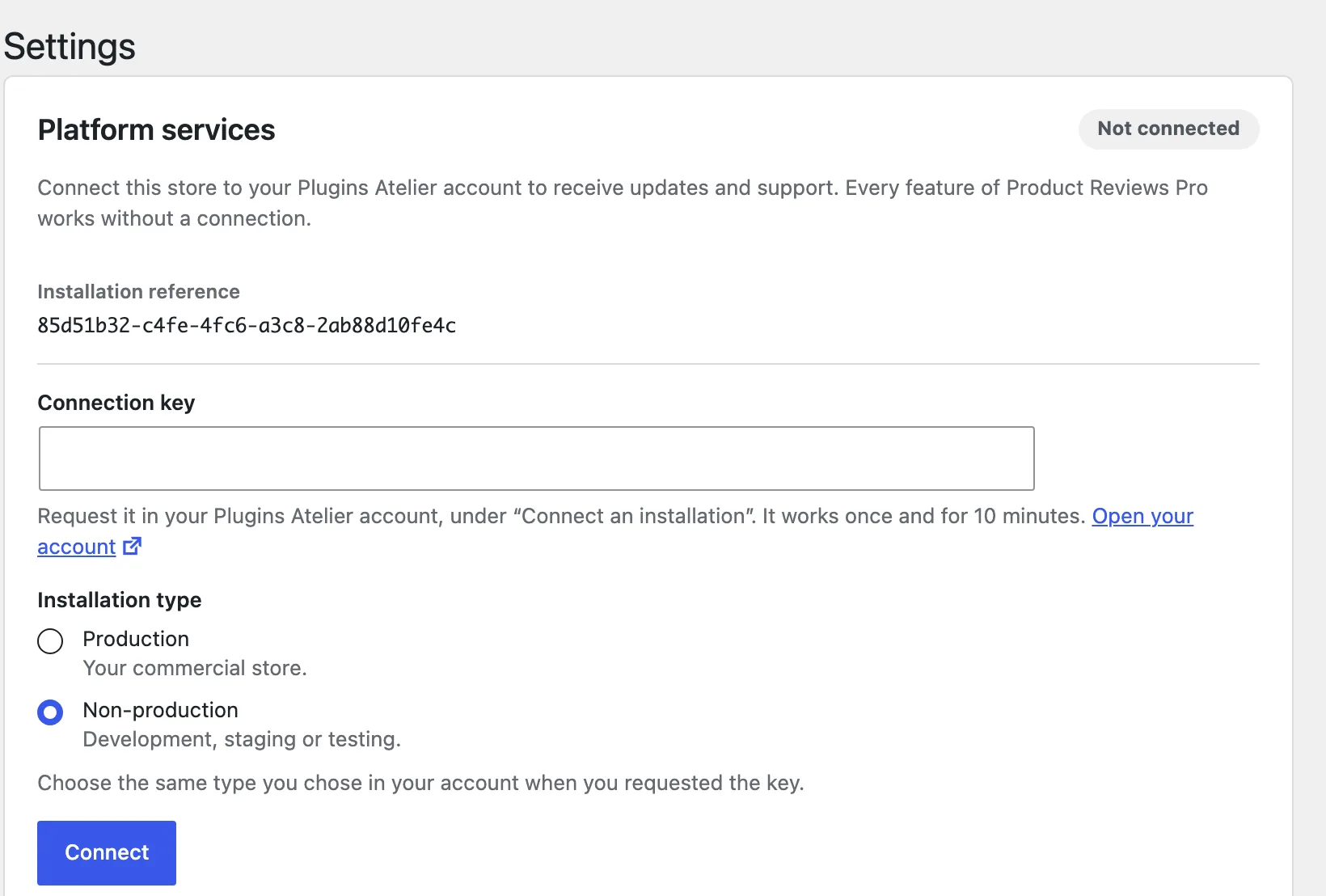
The screen confirms with “Store connected.” and the card then says Services active. If it says anything else, Licence and Account explains each state and what to do, and how long a key works.
Review the first settings
Before you start:
- Visual Reviews is active, in either Edition.
- Go to Visual Reviews > Settings.
- Check Publishing policy, Review request emails and Review reminders. The Settings reference gives each default and what you can change.
- Enter your address in Test email address.
- Select Send test email.
- If you changed a setting, select Save settings.
- Go to Visual Reviews > Widgets.
- On the Visual reviews widget card, select Customize to check the widget’s settings.
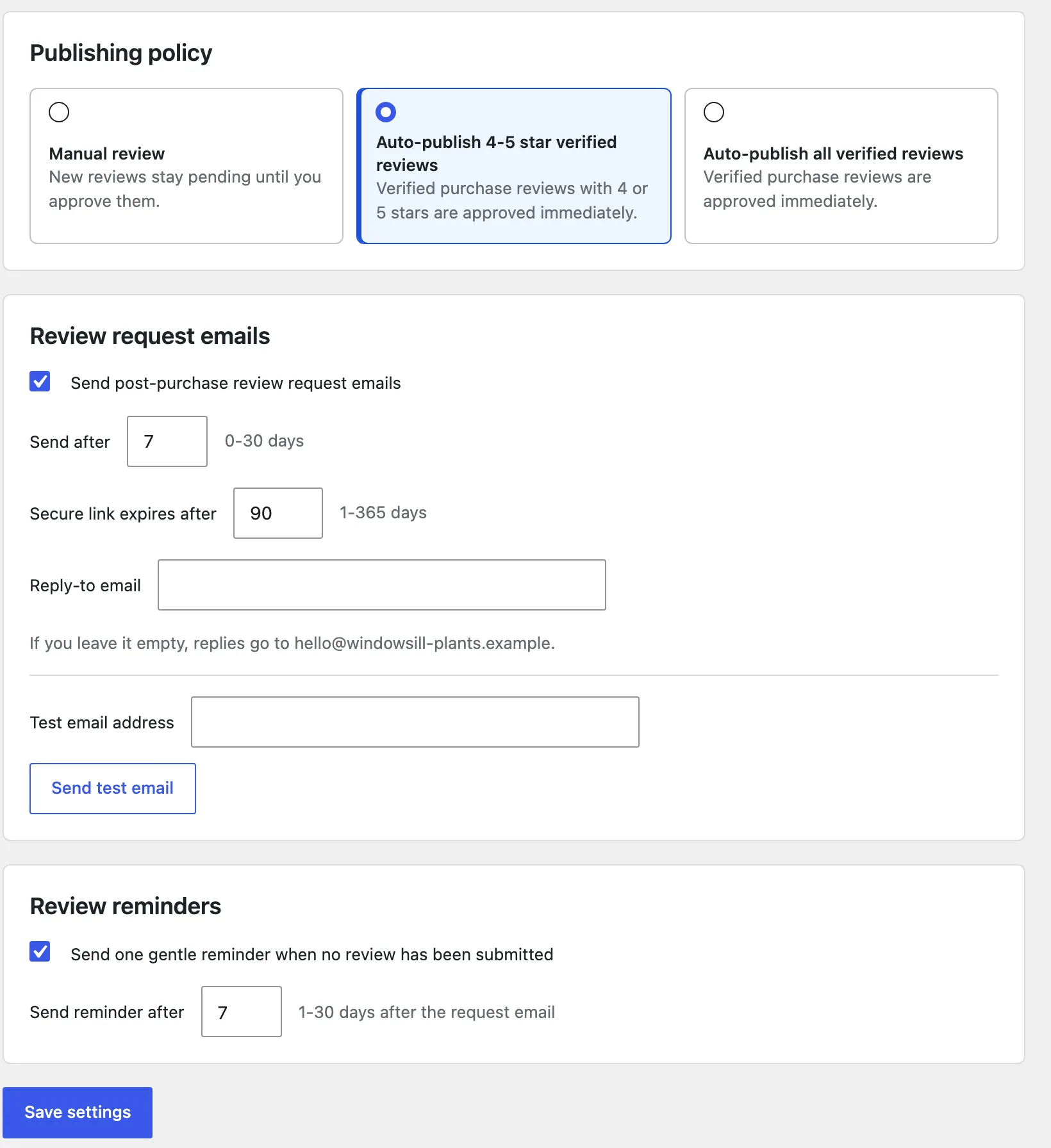
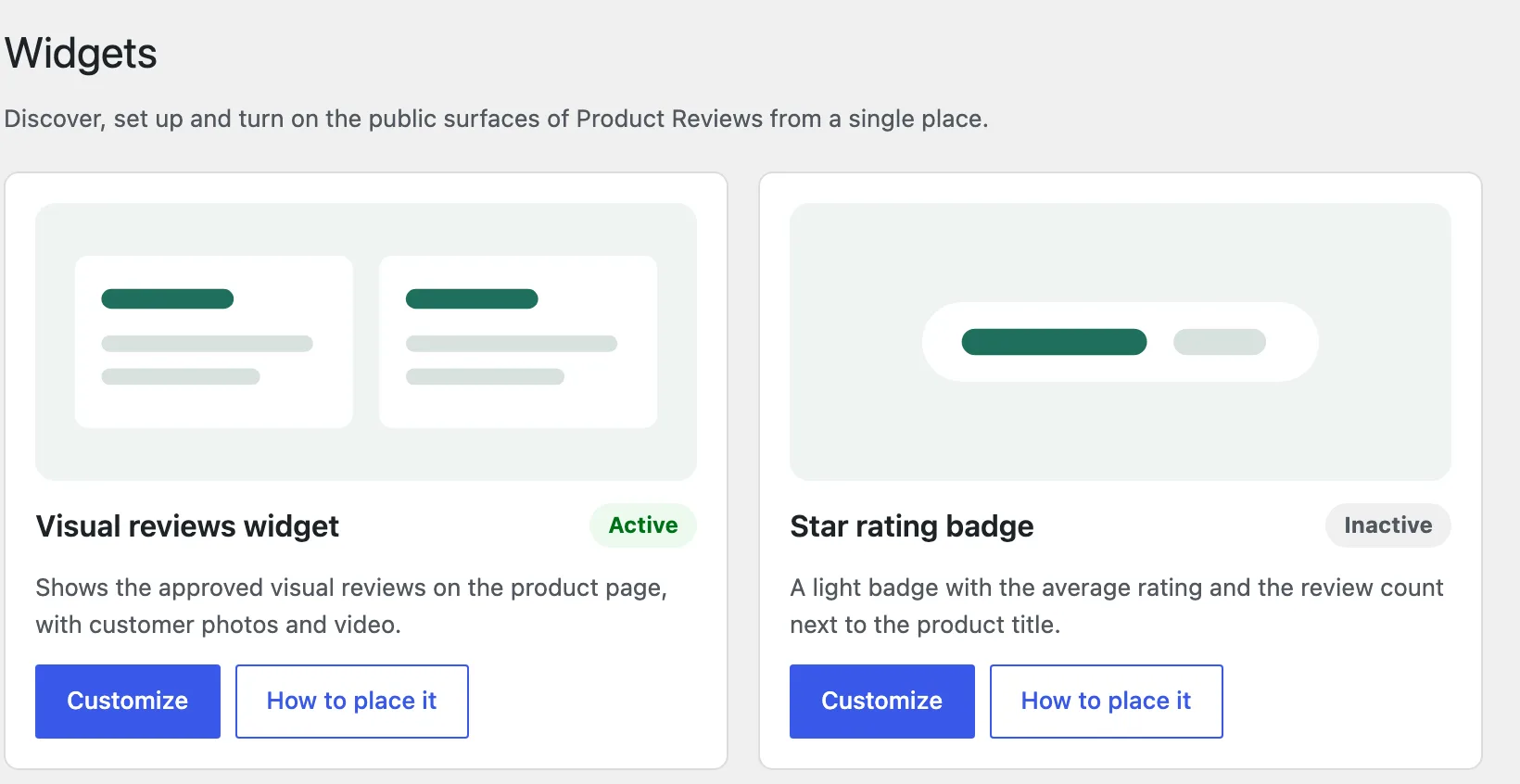
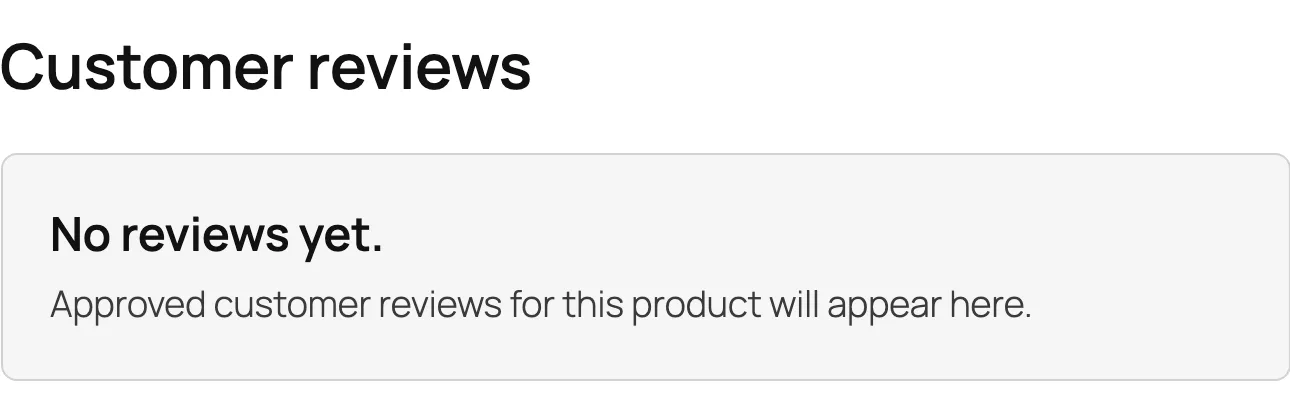
The test email reaches your inbox and creates no review request, and saving confirms with “Settings saved.” A product page of your store then shows the widget below the product summary, with “No reviews yet.” until its first review is approved.
Check that it works
Your first review follows one test order from Completed to a review published on its product page.