Moderation
Decide which reviews are published, approve or reject them, and manage their badge, their product, their place in the widget and your reply.
On this page
You decide what is published in Visual Reviews > Manage reviews. Moderation is the same in Free and in Pro, from version 1.0.0.
The publishing policy
The publishing policy decides whether a new review is published at once or waits for you. The Settings reference says where to set it and which option is the default.
- Manual review: every new review stays pending until you approve it.
- Auto-publish 4-5 star verified reviews: a review from a verified buyer with 4 or 5 stars is published at once, and the rest stay pending.
- Auto-publish all verified reviews: every review from a verified buyer is published at once, and reviews without proof of purchase stay pending.
A change applies to new reviews: existing reviews are not moderated again. A review from a public review link always waits for your approval, with any policy.
The four statuses
- Pending: it waits for your decision and is not shown in your store.
- Approved: it is shown in your store.
- Rejected: it is not shown.
- Archived: it is not shown and it leaves the moderation flow.
Approve, reject or archive a review
Before you start:
- The review is in Visual Reviews > Manage reviews. The list filters by moderation status, content, origin and date, among others, and searches by customer, product or text.
- Open Visual Reviews > Manage reviews.
- Find the review.
- Select Approve, Reject or Archive on it.
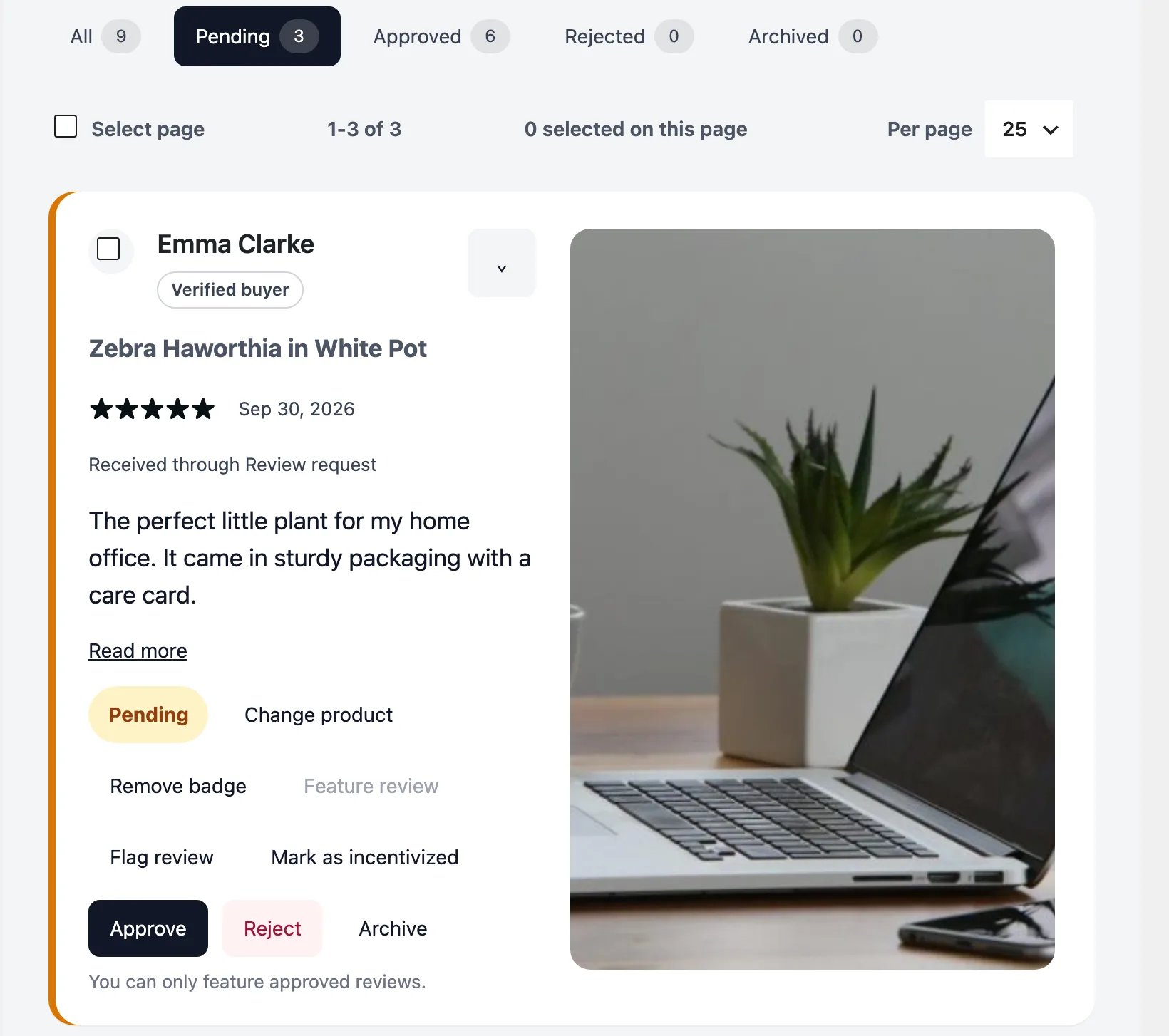
The screen confirms with “Review approved.”, “Review rejected.” or “Review archived.”, and the review moves to the tab of its new status. An approved review shows in the product reviews widget of its product.
Approve, reject or archive several reviews
A bulk action applies to the reviews you select, never to everything a filter matches. It skips a review that is not eligible.
Before you start:
- Up to 100 reviews, on the same page of the list. Archived reviews cannot be changed with bulk actions.
- Open Visual Reviews > Manage reviews.
- Tick each review, or Select page to tick every review on the page.
- Select Approve selected reviews, Reject selected reviews or Archive selected reviews.
- Confirm with the button that names the action and the number of reviews.
The screen says “Bulk action completed”, or “Bulk action partially completed” when it skipped a review, with how many reviews it changed and skipped.
Visual Reviews also follows what you do to a review in WordPress’s own Comments screen. Troubleshooting says how each action there changes the status.
The Verified buyer badge
The badge comes from a real order: the review comes from the link of their purchase, or WooCommerce already had it verified when you imported it.
Important: There is no undo for Remove badge: the badge cannot be shown again on that review.
Remove badge hides the badge of one review. It changes nothing else: the review keeps its status, its product and its purchase evidence.
To hide the badge on every review of the product reviews widget, turn off Show “Verified buyer” in the widget settings, as Display explains.
Move a review to another product
Important: There is no undo for Change product: to go back, move the review again.
Change product moves a review to another product of your store. You can move one review or, in the same step, every Visual Reviews review of the current product, whatever its status and whatever the filters on screen.
- The review keeps its origin, its purchase evidence and the current state of its badge.
- The destination can be any product, published or not, and the screen shows its state.
- A featured review stops being featured when it moves.
- Native WooCommerce reviews that have not been imported do not move.
Before you start:
- The destination product exists in WooCommerce.
- Open Visual Reviews > Manage reviews.
- Find the review.
- Select Change product on it.
- Search for the destination product by its name or ID.
- Choose it in the results.
- To move every review of the current product, tick Move all Visual Reviews reviews from … to this product.
- Select Save.
The screen confirms with “Product changed.”, or with how many reviews it moved, and the review shows the new product.
Feature a review
Feature review puts an approved review first in the product reviews widget and, in Pro, in the product reviews shortcode. Shoppers see no label: only the order changes.
- The most recently featured review goes first. After the featured ones, the rest go from newest to oldest.
- If a featured review stops being approved, it keeps the mark and gets its place back when you approve it again.
Before you start:
- The review is approved.
- Its product has fewer than 10 featured reviews. With 10, the screen says “This product already has 10 featured reviews. Unfeature one before featuring another.”
- Open Visual Reviews > Manage reviews.
- Find the review.
- Select Feature review on it.
The screen confirms with “Review featured.”, and the review goes first in the widget of its product.
Reply to a review
Before you start:
- The review is pending or approved.
- Open Visual Reviews > Manage reviews.
- Find the review.
- Write in Your reply.
- Select Save reply.
The screen confirms with “Reply saved.” Shoppers see it under the review as Store reply once the review is approved: it is signed by the store, not by the person who wrote it, and it has no date.
- A review has one reply, of up to 1000 characters. You can edit it or delete it, and write a new one after deleting it.
- Saving a reply sends no email to the customer.
Suggest a reply drafts a reply with OpenAI, with your own API key and only when you select it. Nothing is published until you save it as your reply. Privacy says how to turn it on and what it sends.
Flags and the incentivized mark
Flag review marks a review for your own follow-up. Shoppers never see the flag, and it changes nothing in the review.
Mark as incentivized shows shoppers the Incentivized review label on a review that was given in exchange for an incentive, and Remove incentivized mark takes it off. An imported review that already carried that mark keeps it.
In Pro, a review that earns a reward is marked on its own: Rewards explains it.