Your first review
Follow one test order from Completed to a review published on its product page.
Run this once after you install, with a test order, before your customers get their first request. It works the same in Free and in Pro, from version 1.0.0.
From order to review
Before you start:
- WooCommerce is active and Visual Reviews > Settings loads.
- Settings shows the Edition you expect, Free or Pro.
- Send test email reaches the address you enter.
- A product you can buy, and a billing email you can read.
- Place a test order with that product and that billing email.
- In WooCommerce > Orders, mark the order as Completed.
- Go to Visual Reviews > Request reviews.
- Open the Requests tab.
- On the request for that order, select Send now.
- Confirm “Send this review request now?”. The screen says “Request queued for sending.”
- Once the email arrives, select its review button.
- Choose a star rating.
- Write a text in Review.
- Select Send review.
- If the review waits for your approval, go to Visual Reviews > Manage reviews.
- Select Approve on the review.
- Open the product page.
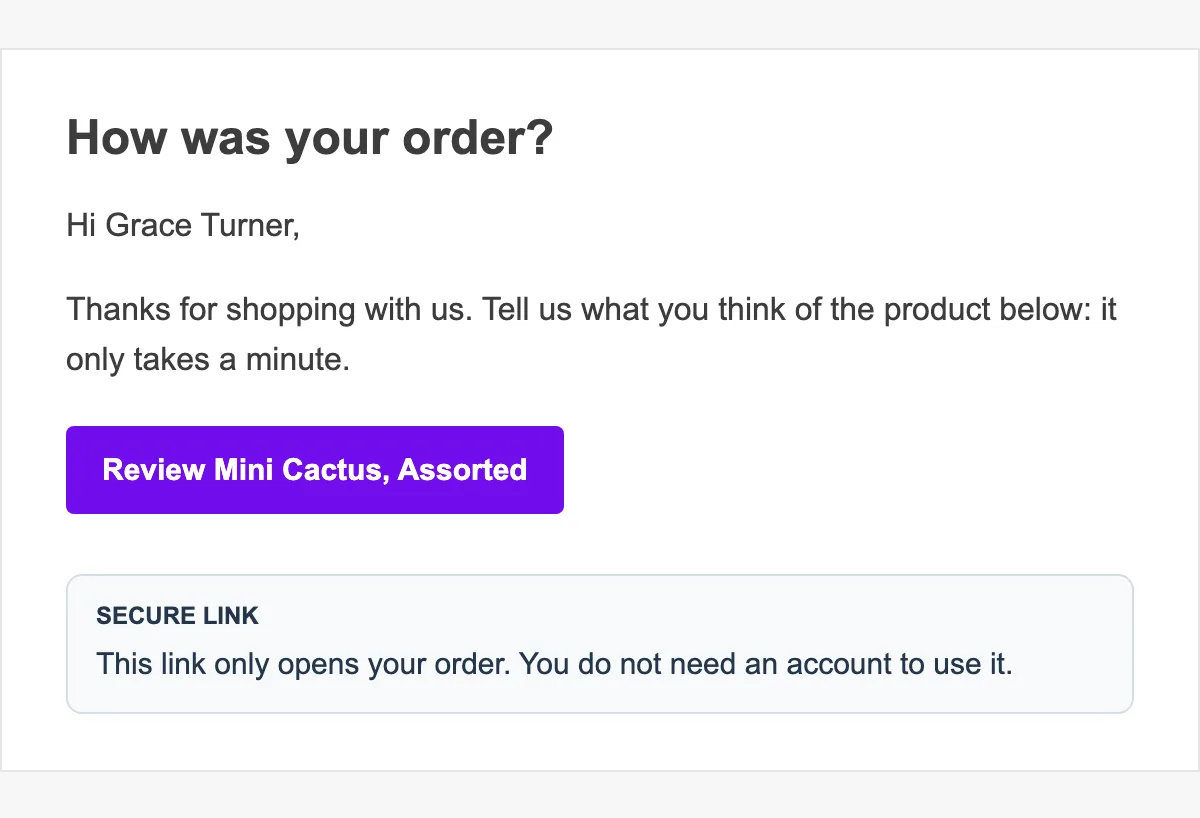
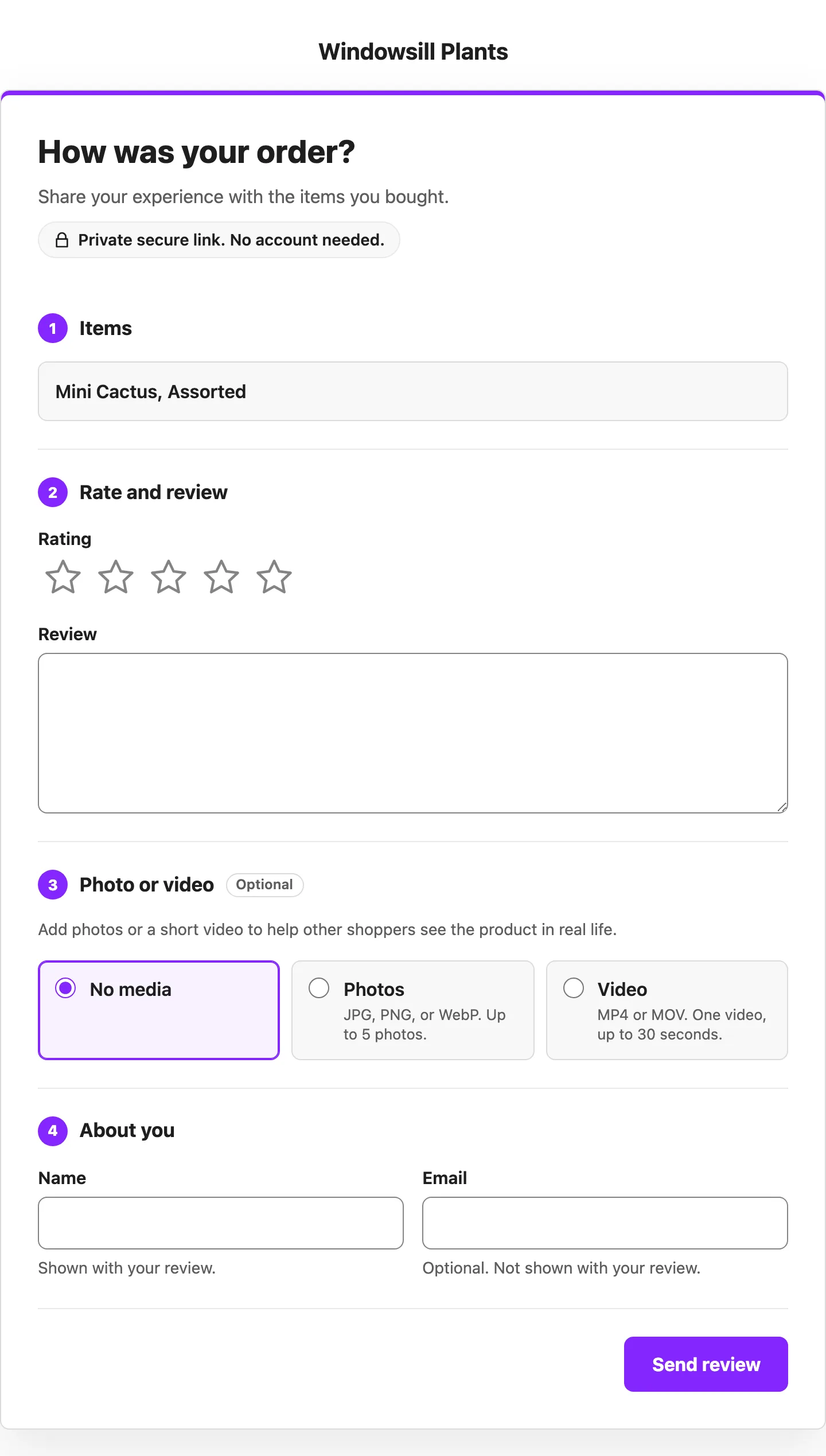
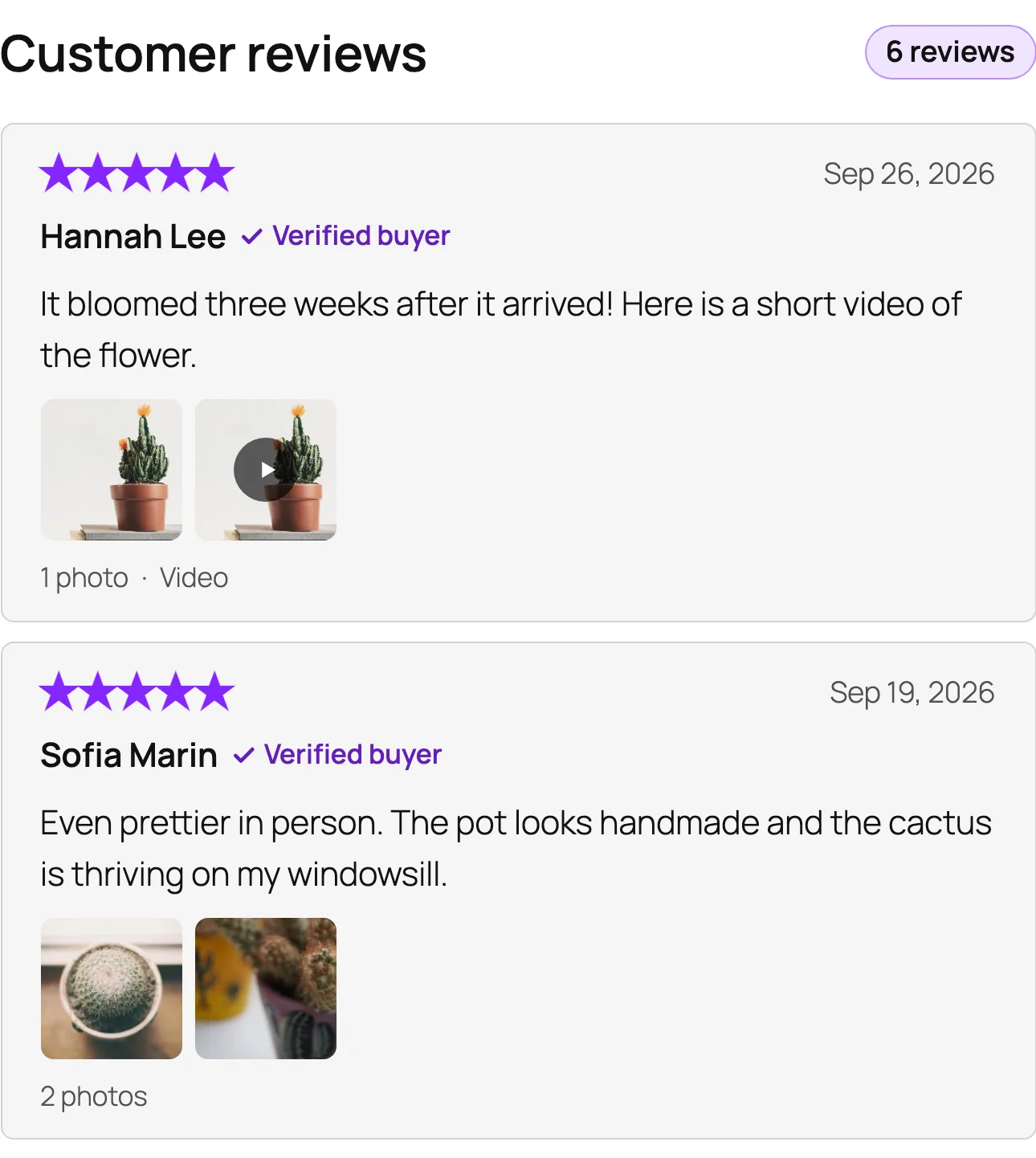
After step 6 the email goes out once your store’s scheduled actions run; without step 5 it would wait for the delay set in Send after. The secure link of step 7 needs no login. After step 10 the form answers “Thanks, your review was sent.” Whether the review waits in step 11 depends on your publishing policy. On the product page, the product reviews widget shows the approved review.
Then try a photo or a video
Repeat the flow and attach a photo or a video: both Editions accept them from the secure link, within the limits of Photos and video. Once the review is approved, the widget shows its photos or its video with it.