Review requests
Ask every customer for a review by email after a completed order, send a request by hand, and choose which products get none.
On this page
Visual Reviews asks for a review by email after each completed order. Unless a section says Pro, everything on this page is in both Editions, from version 1.0.0. The timing of each email and the other settings named here, with their defaults, are in the Settings reference.
How a request works
There is one review request for each order, not one for each product. It is created when the order reaches Completed. For the email to go out, the order needs a valid billing email and at least one product that can be reviewed; without them the request is recorded as Blocked and no email is sent.
The request email carries a secure link that is private to the order and needs no login. From it the customer writes one review for each product they bought.
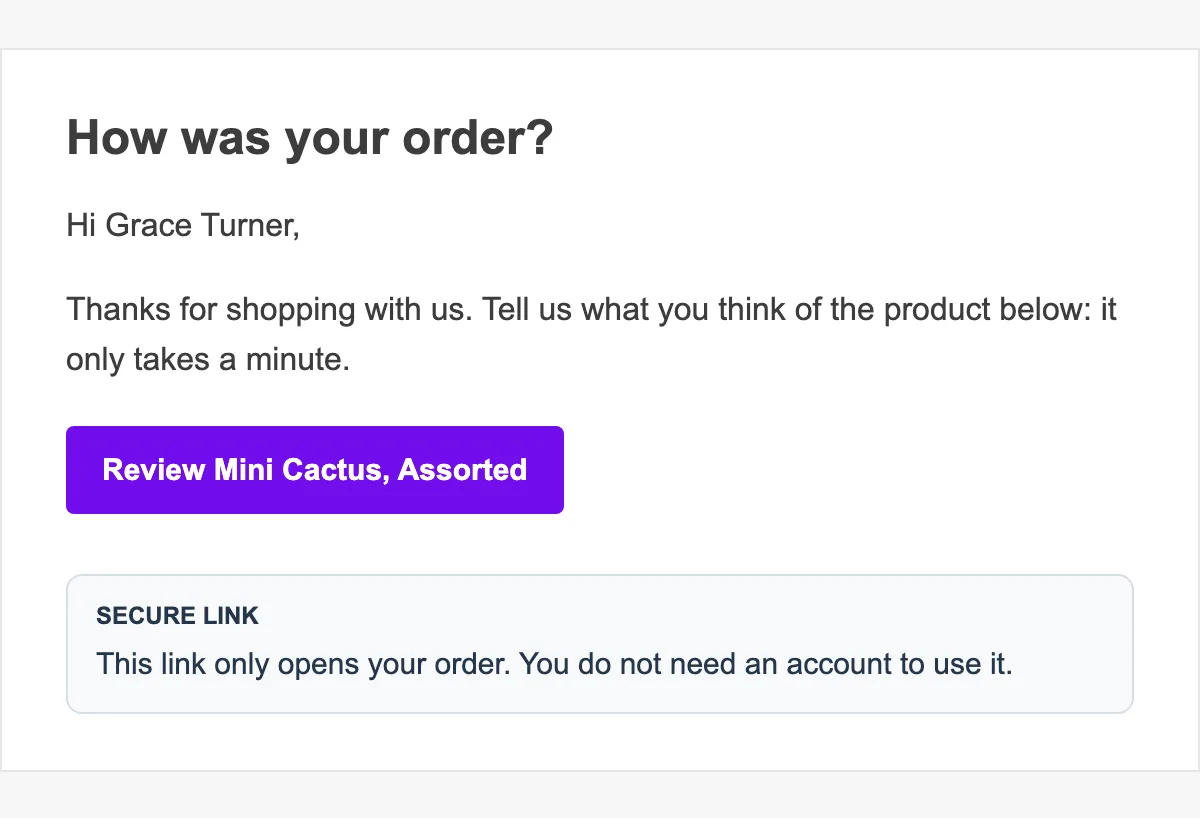
The link expires after the time set in Secure link expires after. It also stops working when the request is cancelled or every product in it has its review.
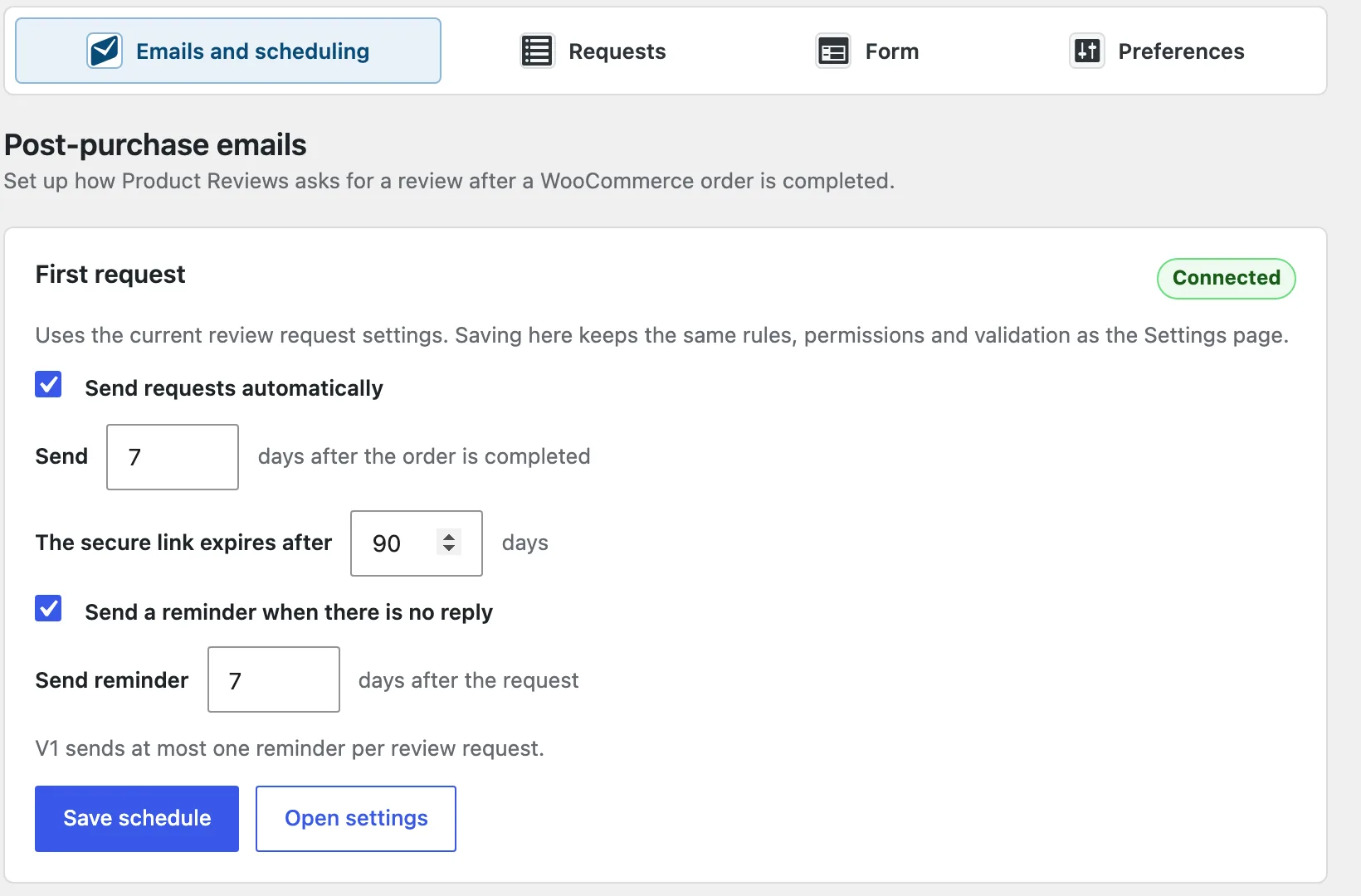
While Review request emails is on, the email is scheduled for the time set in Send after, counted from when the order is completed. Even with no delay, it waits for your store’s scheduled actions to run. The emails go through your store’s own WordPress mail: The request email does not arrive follows an email that did not go out.
The reminder
With Review reminders on, one reminder goes out after the time set in Send reminder after, counted from the request email, and only when the customer has not sent any review from that request. There is at most one reminder for each request, and no separate schedule for each product.
Request a review by hand
Before you start:
- The order is Completed.
- Go to Visual Reviews > Request reviews.
- Open the Requests tab.
- Select Request a review to open the list of completed orders.
- Search for the order by its ID, its customer or their email.
- Choose the order.
- Select Request a review again, under the list.
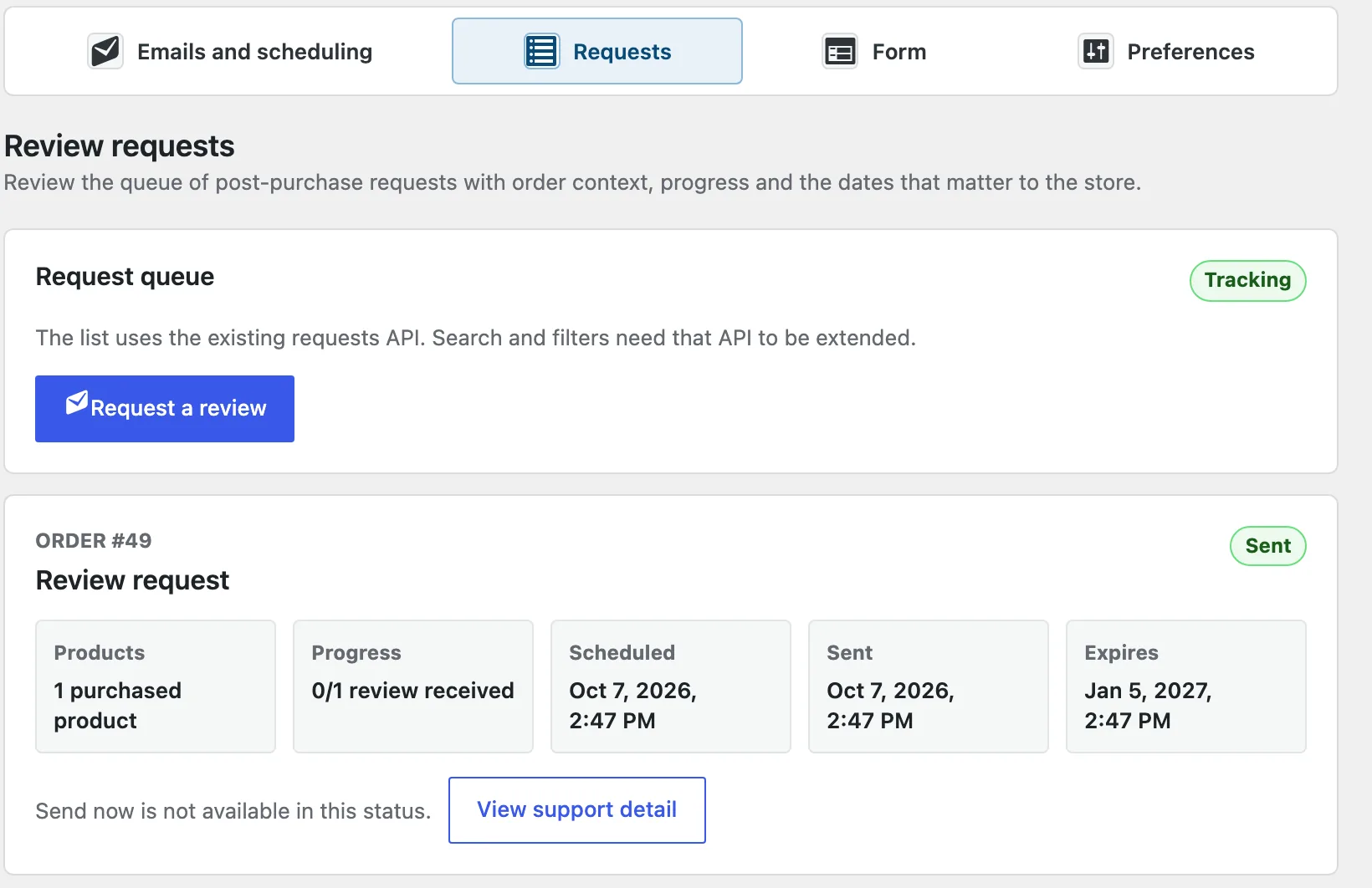
The screen confirms with “Request created and queued for sending for order #…”, with the order’s number, and the request appears in the Requests tab as Scheduled, then as Sent once your store’s scheduled actions run.
What to expect:
- The email goes out right away, without the delay of Send after, and also when Review request emails is off.
- An order has one request. If it already has one that is waiting to be sent, that one is sent. If its request was already sent, completed, expired or cancelled, nothing new is created and it is not reopened.
- If the order has no valid customer email or no product that can be reviewed, the request is recorded as Blocked and no email goes out.
The request queue
The Requests tab lists each request with its order, its progress and its dates. On a request that is waiting, Send now sends the email without waiting for the delay. Cancel cancels a request, and its link stops working. View support detail shows its status, its products and a timeline of what happened.
Exclude products or categories
Before you start:
- The products and categories to exclude exist in WooCommerce.
- Go to Visual Reviews > Request reviews.
- Open the Preferences tab.
- In Request exclusions, search for a product in Excluded products, or for a category in Excluded categories.
- Select Add next to it. Repeat steps 3 and 4 for each one.
- Select Save exclusions.
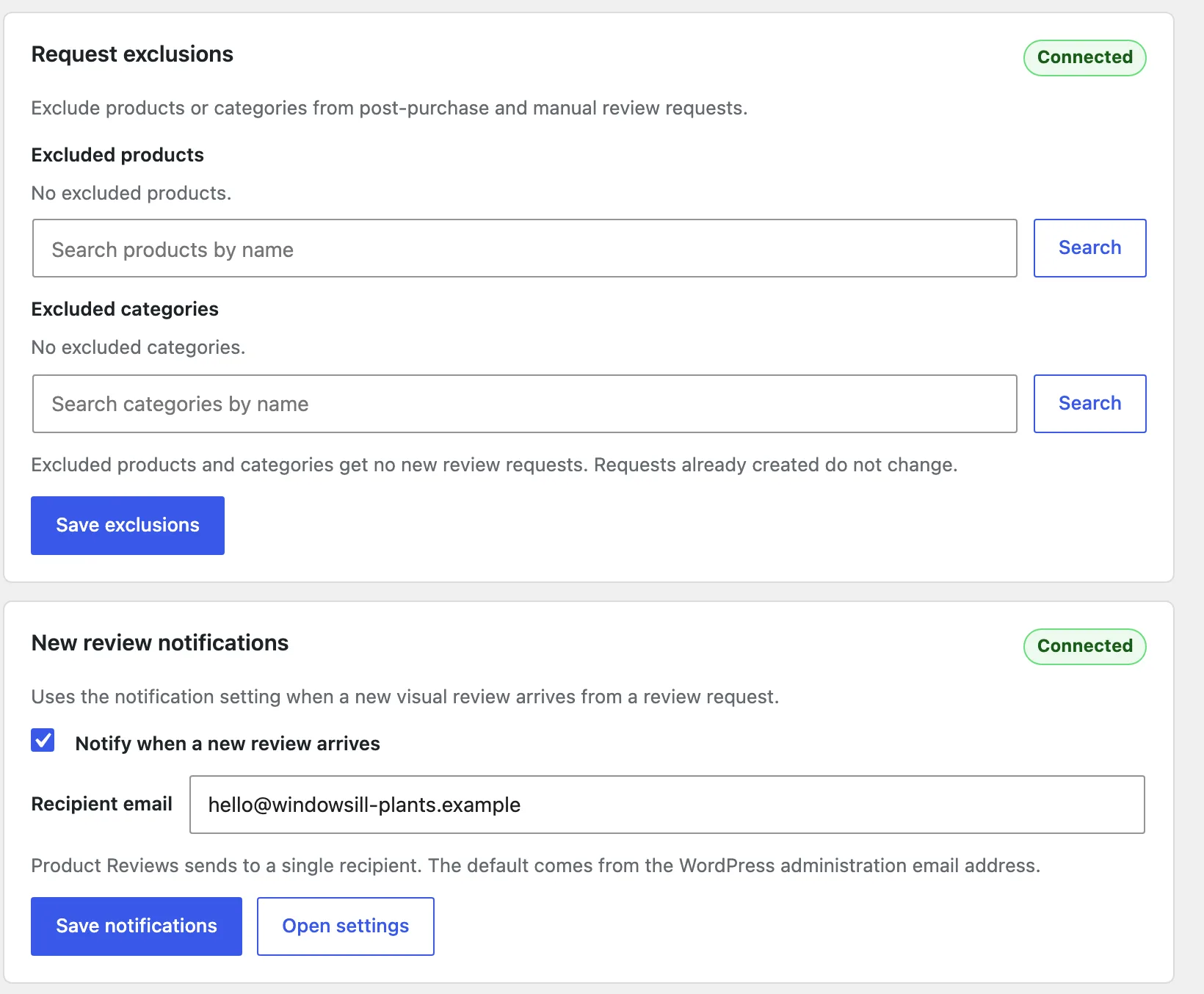
The screen confirms with “Exclusions saved.” The exclusions apply to the requests created from then on, after an order and by hand. If every product in an order is excluded, its request is recorded as Blocked, with the reason “The order has no products that can be reviewed.”
A developer can also exclude products with the atelier_product_reviews_reviewable_product filter.
Change the texts of the review form
Before you start:
- The new texts, in your customers’ language.
- Go to Visual Reviews > Request reviews.
- Open the Form tab.
- In Form texts, edit the texts you want to change. An empty field uses the default text.
- Select Save texts.
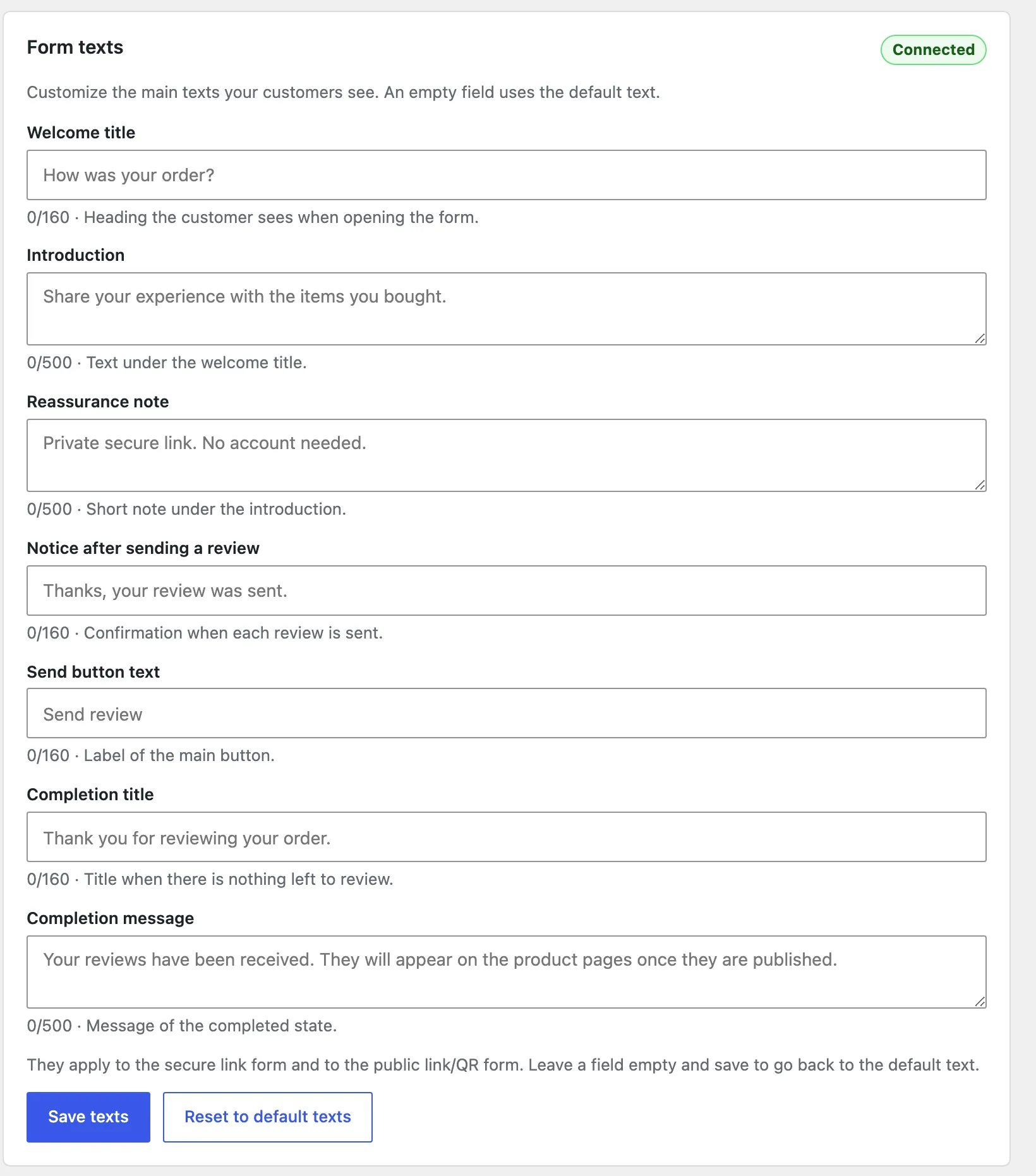
The screen confirms with “Form texts saved.” The texts apply to the form of the secure link and to the form of public review links.
Replies and new review notifications
When a customer replies to a request email or a reminder, the reply goes to Reply-to email, in Visual Reviews > Settings.
Visual Reviews can also email you when a new review comes in, with New review notifications in the Preferences tab. Moderation explains what happens to the review next.
In Pro: the reward in the emails
With the review reward turned on in Pro, the request email and the reminder announce the coupon. Rewards explains what they say.