Settings reference
Look up any setting of Visual Reviews, in Free and in Pro, with its default value, the values it takes and where it is in your WordPress admin.
On this page
This reference covers both Editions of Visual Reviews, from version 1.0.0, and says which settings only Pro has. Each setting is described once, here, and the other pages link to it.
Settings
These settings are in Visual Reviews > Settings. Select Save settings under them to apply a change. The Emails and scheduling tab of Visual Reviews > Request reviews has the request and reminder settings too, with shorter labels.
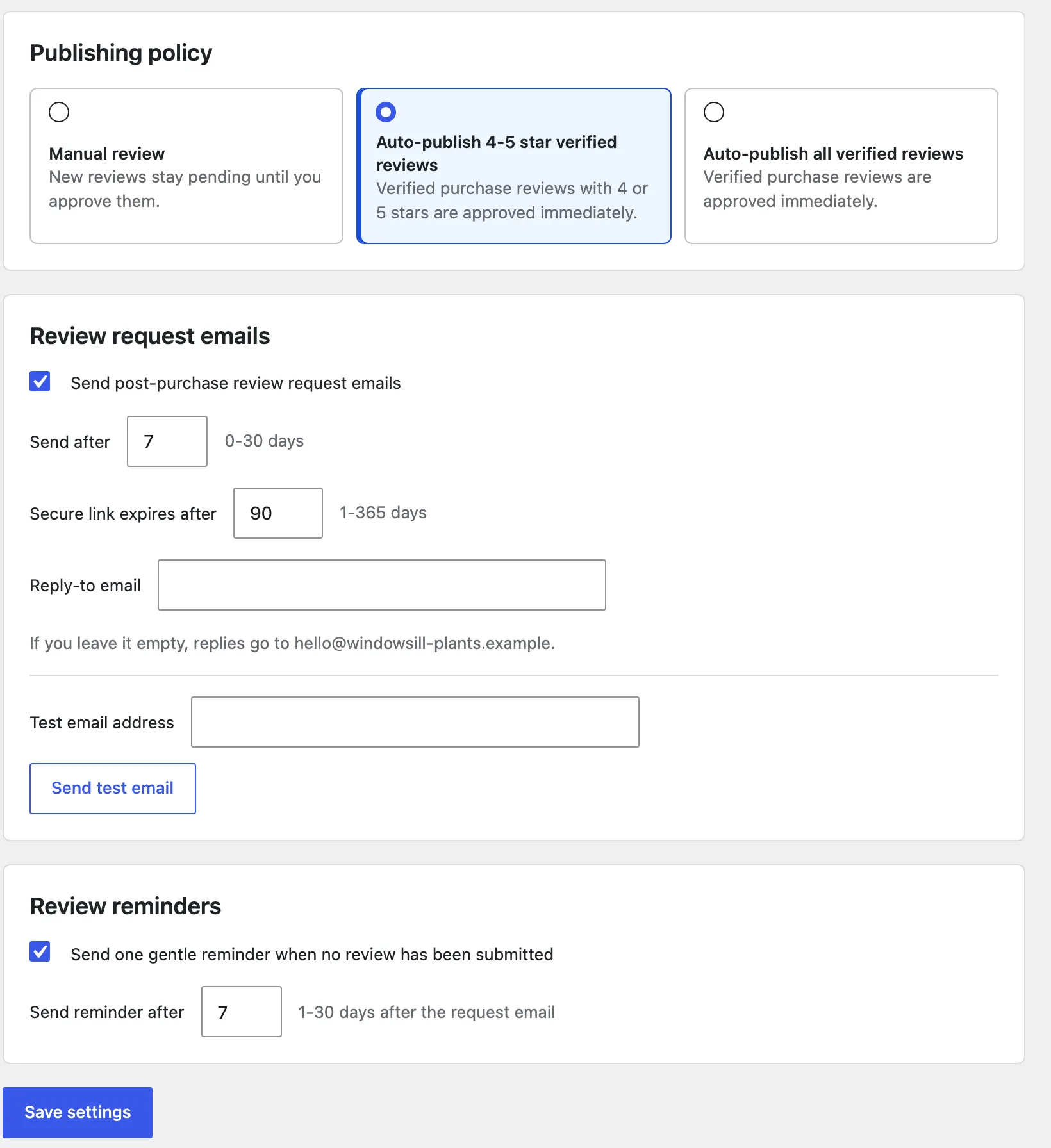
Publishing policy
Whether a new review is published at once or waits for your approval. Moderation explains each option.
- Default: Auto-publish 4-5 star verified reviews.
- Values: Manual review, Auto-publish all verified reviews or Auto-publish 4-5 star verified reviews.
Review request emails
Labelled Send post-purchase review request emails: whether a completed order gets a review request email on its own. A request you send by hand goes out either way.
- Default: on.
- Values: on or off.
Send after
How long after an order is completed its request email is scheduled.
- Default: 7 days.
- Values: 0 to 30 days.
Secure link expires after
How long the private link in a request email keeps working, from the request email.
- Default: 90 days.
- Values: 1 to 365 days.
Reply-to email
Where customers’ replies to a request email or a reminder go.
- Default: empty, which sends replies to the WordPress administration email address, shown under the field.
- Values: one email address.
Review reminders
Labelled Send one gentle reminder when no review has been submitted: one reminder for each request, only when the customer has not sent any review from it.
- Default: on.
- Values: on or off.
Send reminder after
How long after the request email the reminder goes out.
- Default: 7 days.
- Values: 1 to 30 days.
Your brand
These settings are in the Your brand card of Visual Reviews > Settings, and apply to every public surface and email of Visual Reviews. Select Save brand to apply a change.
Logo
Shown in emails and on the review page.
- Default: none, so your store name is used instead.
- Values: a PNG or JPG image from your Media Library, about 400 × 100 px.
Star color
- Default: Automatic (your store’s colors): your theme’s accent color in your store, and your WooCommerce email color on the review form.
- Values: in Free, Automatic (your store’s colors). In Pro, also Custom, with the color you choose.
Corner style (Pro)
Only in Pro. Free uses the standard rounding.
- Default: Rounded.
- Values: Sharp, Slightly rounded, Rounded or Extra rounded.
Show “Powered by Visual Reviews” under your product reviews (Free)
Only in Free: the Powered by credit under your reviews, which Display explains.
- Default: off.
- Values: on or off.
Request reviews: Preferences
These settings are in the Preferences tab of Visual Reviews > Request reviews. Each card has its own save button.
Request exclusions
Excluded products and Excluded categories get no new review requests, after an order or by hand. Requests already created do not change.
- Default: none.
- Values: any products and categories of your store.
New review notifications
Notify when a new review arrives emails you when a review comes in, at Recipient email.
- Default: on, to the WordPress administration email address.
- Values: on or off, and one email address.
Link and QR code
Turn on organic capture through a public link gives each published product that allows reviews a public review link and its QR code.
- Default: off.
- Values: on or off.
Request reviews: Form
Form texts is in the Form tab of Visual Reviews > Request reviews. Its texts apply to the review form of the secure link and of public review links. Select Save texts to apply a change, or Reset to default texts.
Form texts
Welcome title, Introduction, Reassurance note, Notice after sending a review, Send button text, Completion title and Completion message.
- Default: empty, which uses the default text, shown in the empty field.
- Values: up to 160 characters for Welcome title, Notice after sending a review, Send button text and Completion title, and up to 500 for the other three.
Request reviews: Discounts (Pro)
Only in Pro. These settings are in the Review reward card of the Discounts tab of Visual Reviews > Request reviews. Select Save reward to apply a change.
Turn on the review reward (Pro)
Issues a coupon when a review with a photo or a video from a review request is approved. Rewards explains which reviews earn it.
- Default: off.
- Values: on or off.
Discount type (Pro)
- Default: Percentage discount, a percentage off the next order.
- Values: Percentage discount, or Fixed amount discount, a fixed amount in the store currency.
Discount (Pro)
- Default: 10.
- Values: greater than 0; a percentage cannot be over 100.
The coupon expires after (Pro)
- Default: 30 days.
- Values: 1 to 365 days.
Widgets: Visual reviews widget
These settings open with Customize on the Visual reviews widget card of Visual Reviews > Widgets. Select Save changes to apply a change.
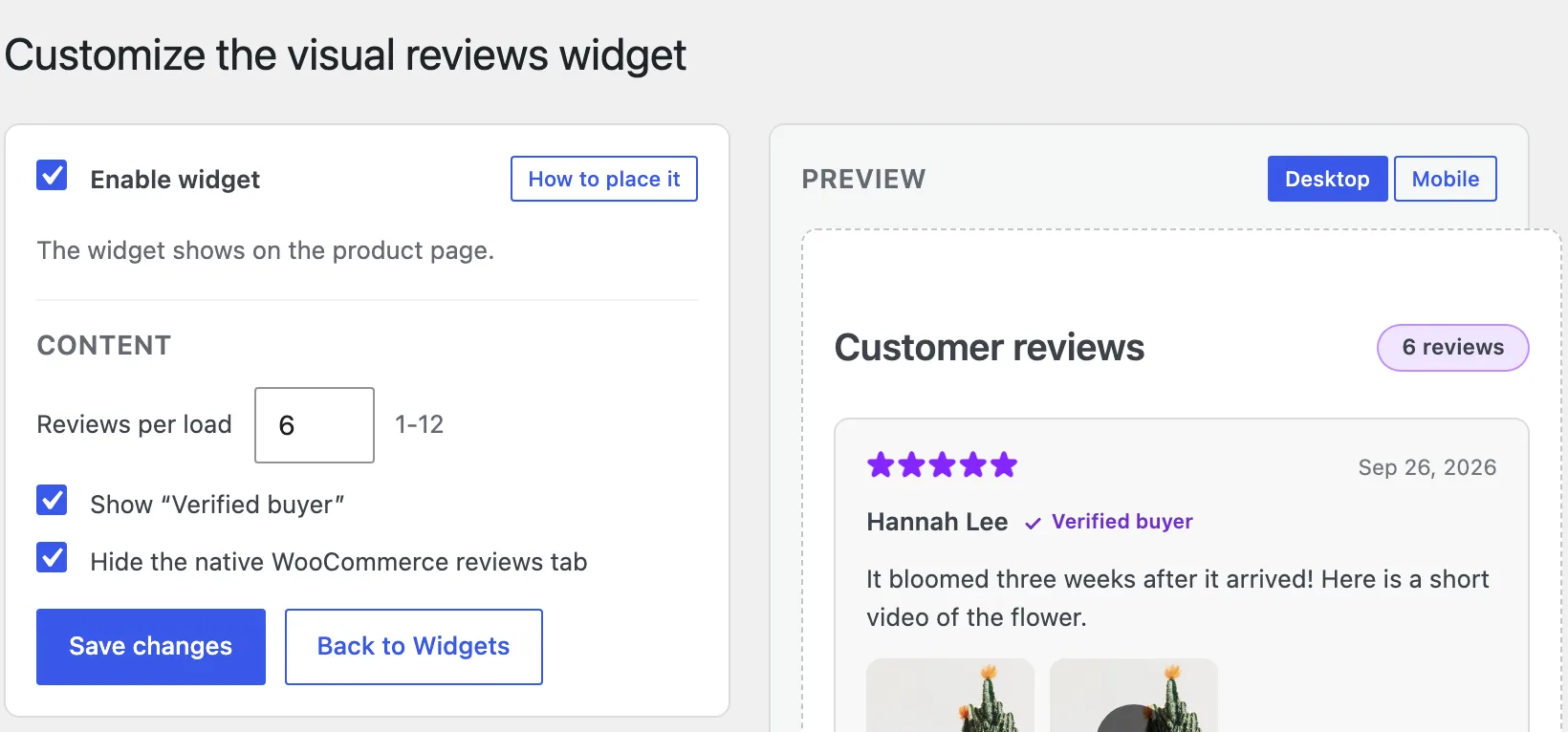
Enable widget
Shows the widget on the product page, below the product summary.
- Default: on.
- Values: on or off.
Reviews per load
How many reviews the widget lists at first and adds with each Show more reviews.
- Default: 6.
- Values: 1 to 12.
Show “Verified buyer”
Shows the Verified buyer badge on the reviews that have it.
- Default: on.
- Values: on or off.
Hide the native WooCommerce reviews tab
Hides WooCommerce’s own Reviews tab, so the product page shows one list of reviews.
- Default: on.
- Values: on or off.
Layout (Pro)
Only in Pro.
- Default: List, a single column.
- Values: List, or Grid, a denser layout for products with many reviews.
Trust header (Pro)
Only in Pro: a header with the average rating, the review count and the breakdown by stars.
- Default: off.
- Values: on or off.
Card background color and Text color (Pro)
Only in Pro. Text color appears once the cards have their own background color.
- Default: Automatic, from your theme’s text color.
- Values: Automatic, or the color you choose.
Widgets: Star rating badge
These settings open with Customize on the Star rating badge card of Visual Reviews > Widgets. Select Save changes to apply a change.
Enable star rating badge
Shows the badge next to the product title, in place of WooCommerce’s stars in a classic theme.
- Default: off.
- Values: on or off.
Show the review count next to the average rating
- Default: on.
- Values: on or off.
Elsewhere
Connecting Pro to your account, in the Platform services card of Visual Reviews >
Settings, is explained in Licence and Account. Two options
live in wp-config.php instead of your WordPress admin:
Privacy explains both.